Save it now,
find it later.
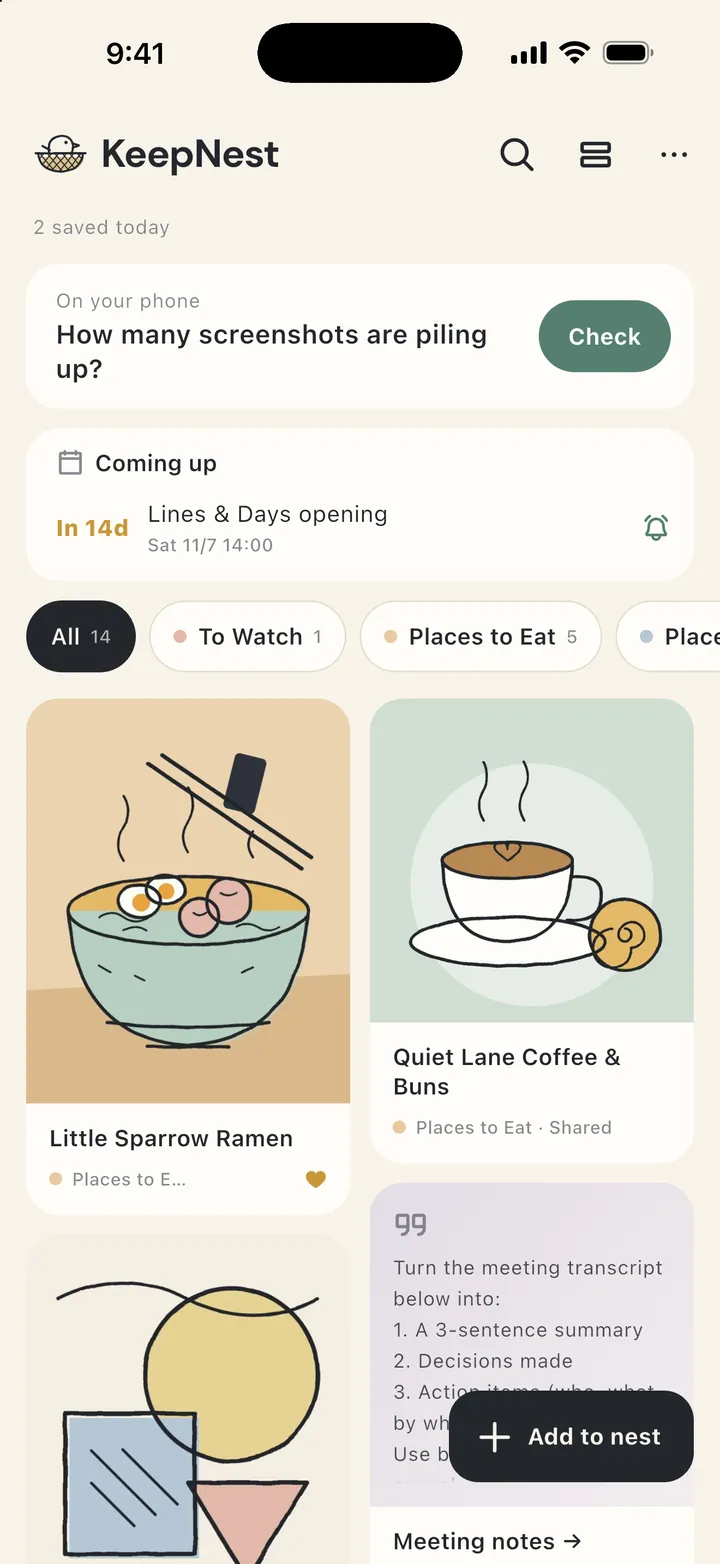
KeepNest turns the screenshots, links and notes you save into tidy cards, with the title, category, address, opening hours and dates filled in for you. Scroll your collection like a social feed, and find anything in seconds.
Available on iPhone and Android・Free download · No sign-up · No ads
Tons of screenshots, but never the one you need?
Restaurants to try, hotels to book, handy AI prompts, deals and reservations. You screenshot them all, and they end up scattered across Photos, bookmarks and chats. KeepNest makes "I'll save it for later" actually useful later.
One place for everything you want to keep
An app made for screenshots, links and quick notes.
Save from anywhere
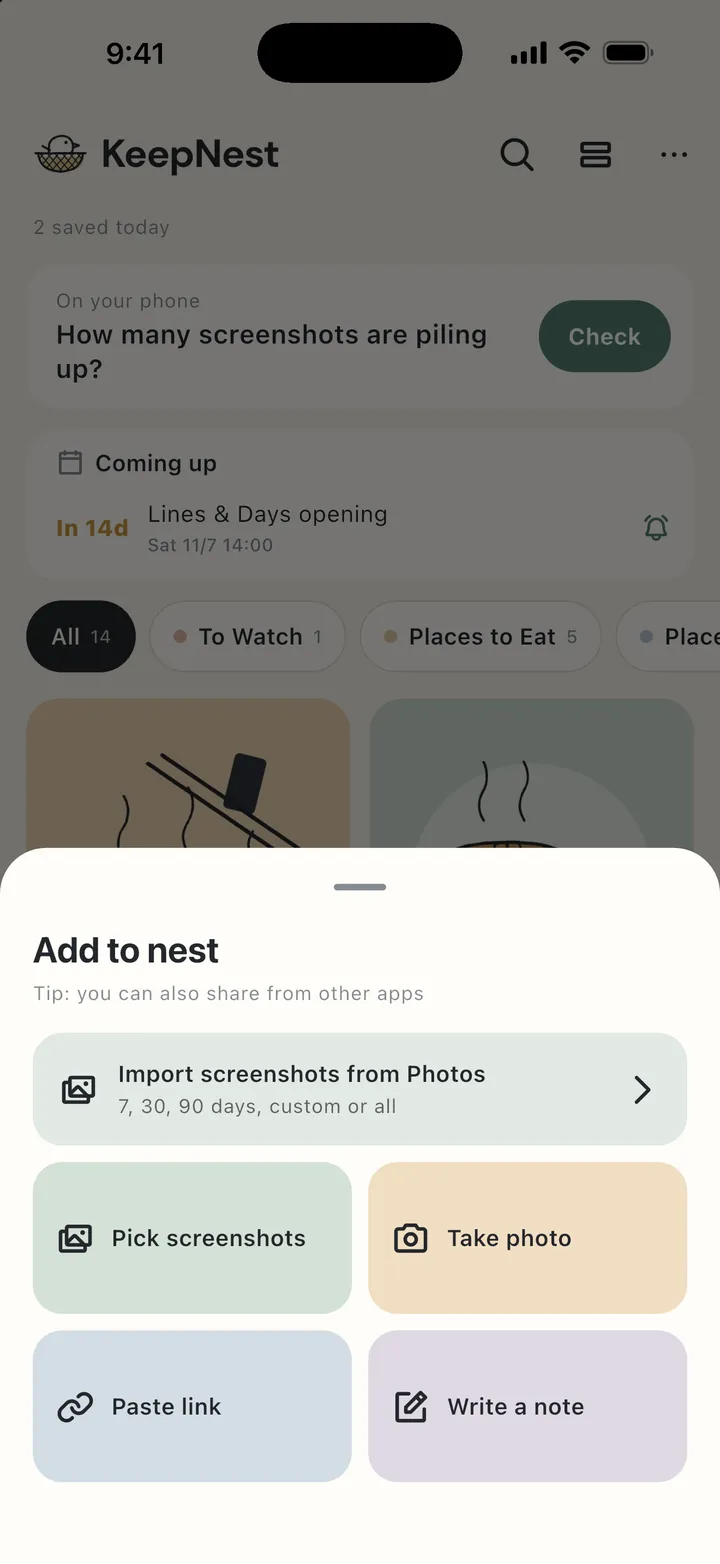
Tap Share in any app and pick KeepNest, or import screenshots from Photos in one go: the last 7, 30 or 90 days, or all of them. You can also snap a photo, paste a link or jot a note.
AI that reads your screenshots
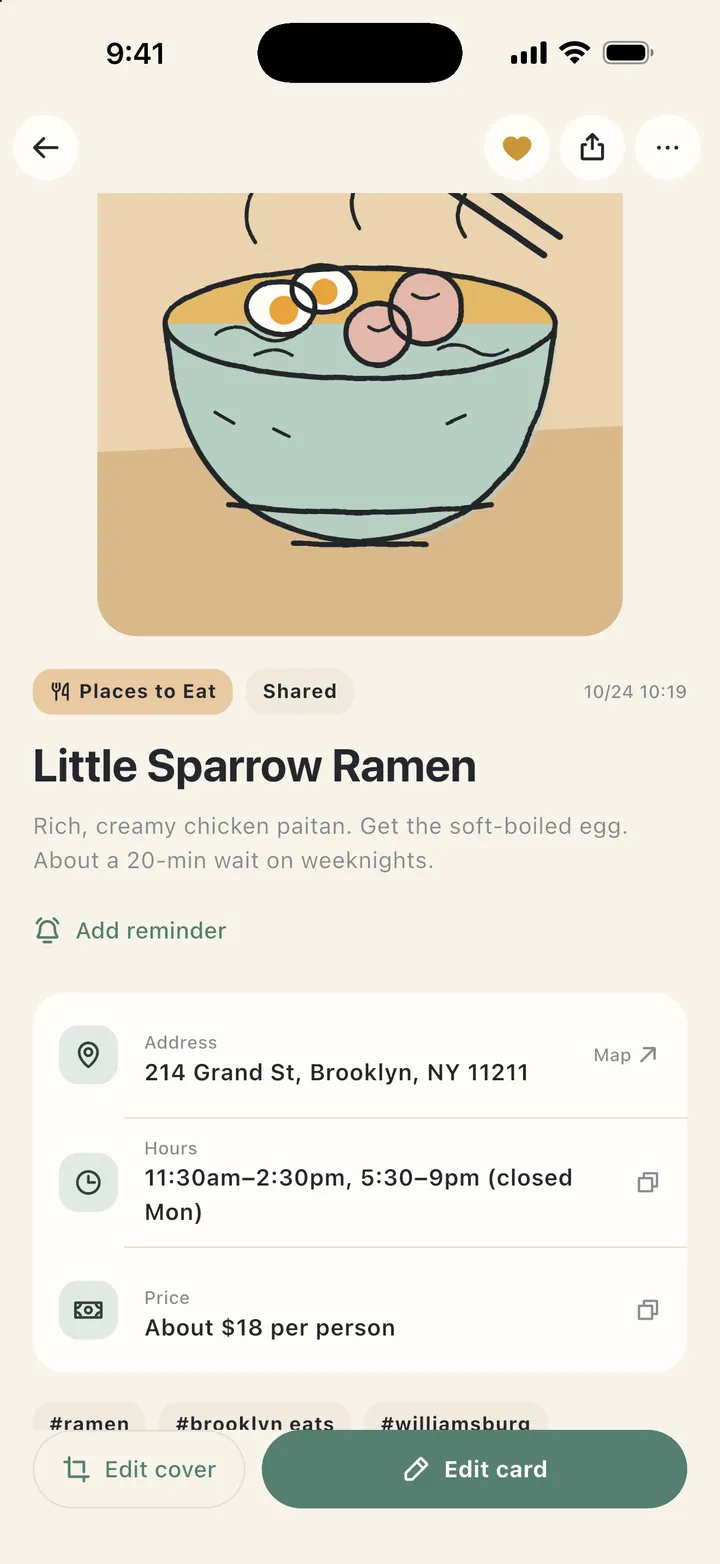
It adds a title and category, and picks out place names, addresses, phone numbers, opening hours, prices and dates as easy-to-search details. Free includes 30 AI sorts a month.
Forgot where it is? Just search
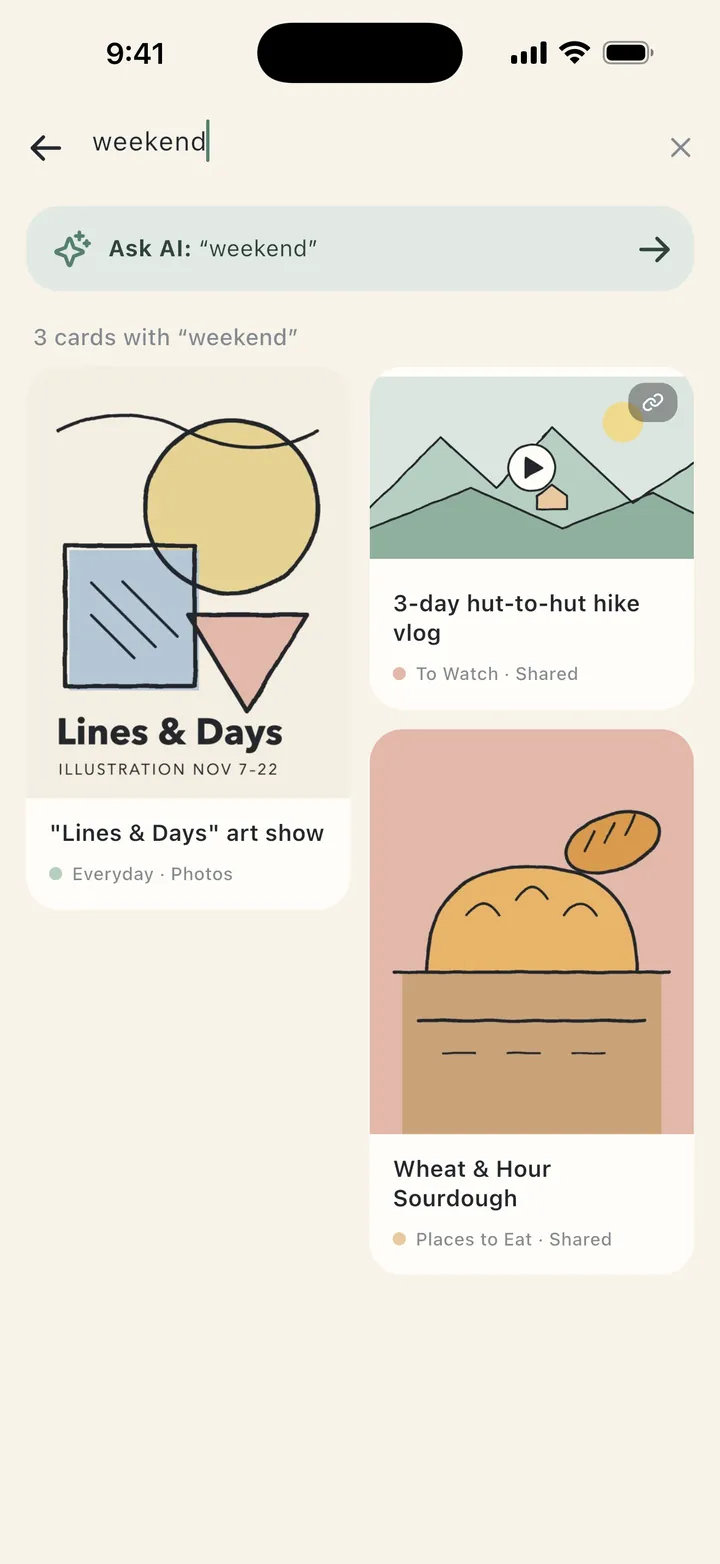
Search titles, addresses, tags, and even the text inside your screenshots. With KeepNest AI, just ask: "Where was that ramen place?"
Turn dates into reminders
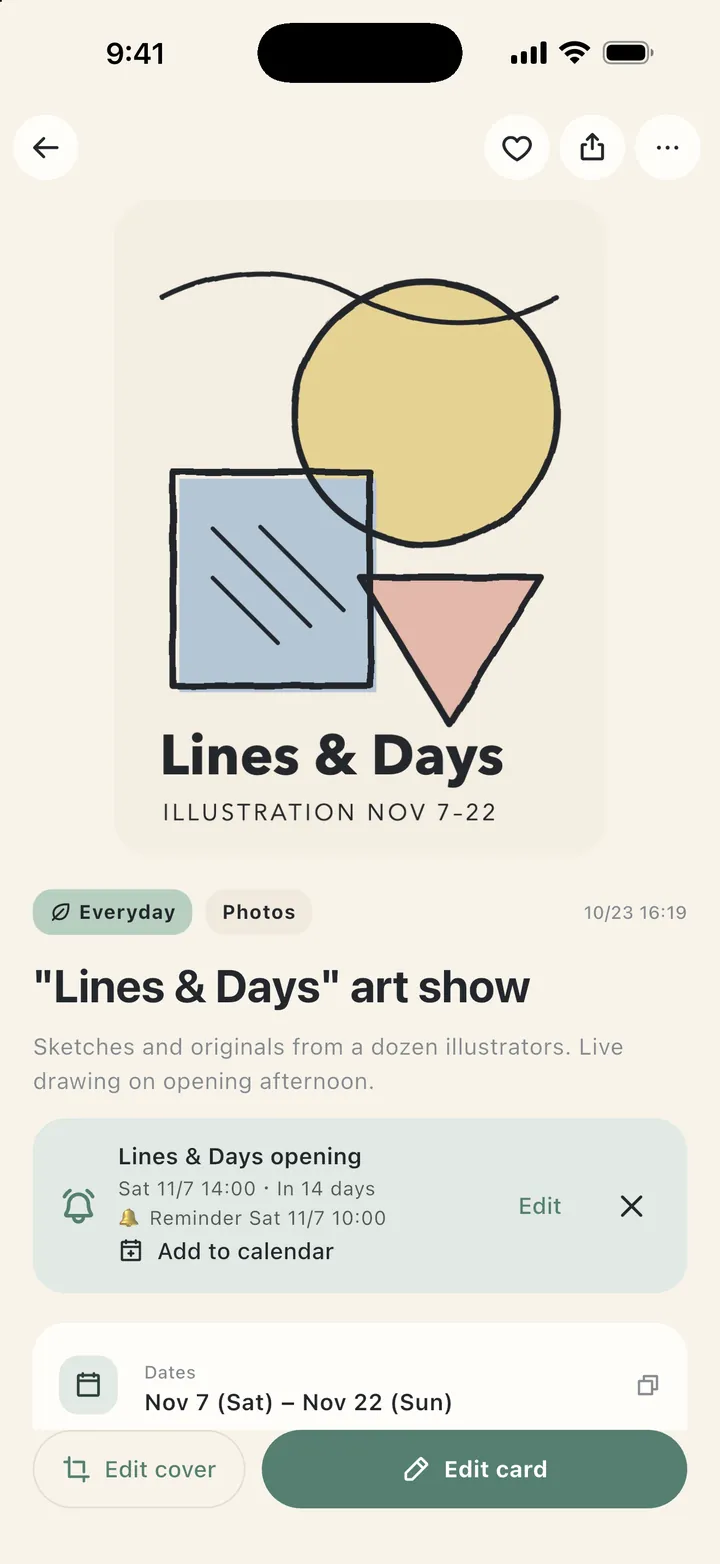
Exhibitions, reservations, appointments, expiring deals: set a reminder so you never miss one, or add it to your phone's calendar in one tap.
Sort a pile in minutes
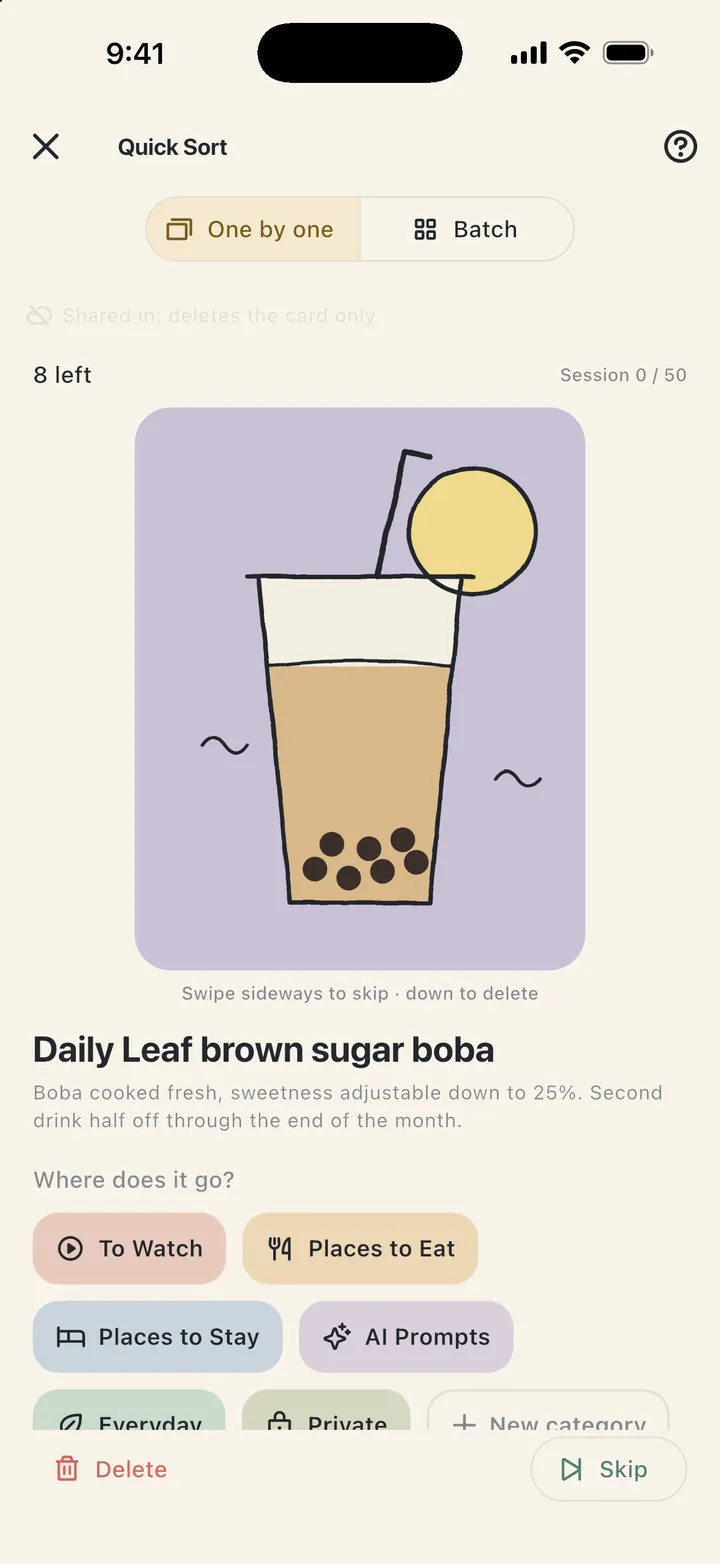
Quick Sort shows your screenshots one at a time. Just tap a category for each. When you're done, delete the originals from your phone to free up space.
Stays on your phone
Save, browse and search even offline. No account needed. Private cards are never sent to AI. No ads, no tracking.
Three steps from screenshot to found
No need to sort it right away. Just drop it in.
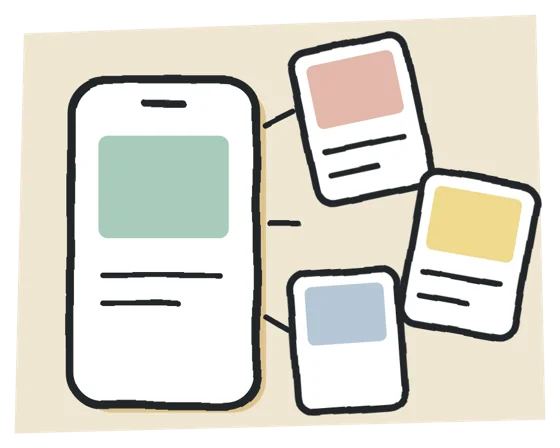
1Screenshot or share it
See something worth keeping? Screenshot it, or tap Share in any app and pick KeepNest. Sort it later.
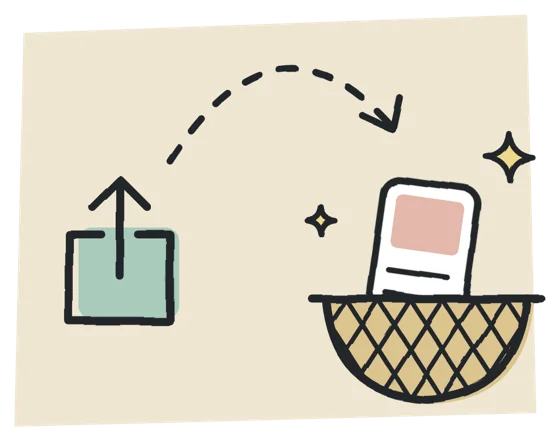
2AI turns it into a card
Title, category, address, opening hours and dates fill in on their own. Private cards are never shown to AI.
3Browse like a social feed
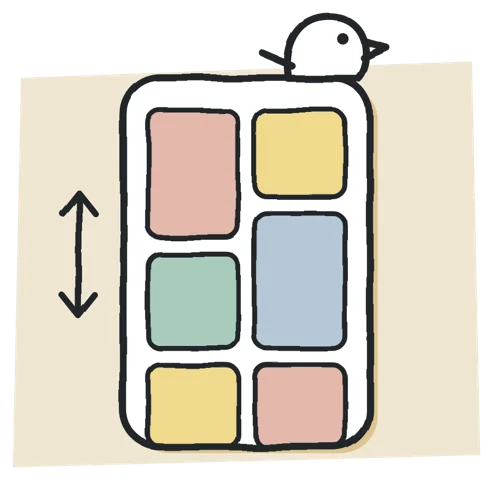
Big picture cards, one-tap category switching and full-text search. It's there when you need it.
See it in action
A clean, storybook-style look with big cards that are easy to browse. (Places and content shown are sample data.)
Start free, upgrade when you need more
No sign-up, no ads. Prices are shown in the App Store or Google Play for your region.
Free
Free
Ready when you download
- Unlimited screenshots, links and notes
- Photos import and full-text search
- Manual backup export
- 30 AI sorts a month
- 6 custom categories
- Quick Sort up to 50 per round
Plus
One-time purchase
Pay once, yours to keep
- Unlimited categories
- Unlimited Quick Sort
- Auto backup to iCloud Drive or Google Drive
- 30 AI sorts a month
- Future sorting features included
KeepNest AI
Monthly or yearly
Cancel anytime
- 1000 AI sorts a month
- Ask your collection
- Everything in Plus
- Keep all your cards if you cancel
FAQ
Things you might want to know about KeepNest.
What is KeepNest?
KeepNest is an app that turns your screenshots, links and notes into organized cards. Save a restaurant, a show to watch or a handy AI prompt by screenshotting or sharing it, and AI adds a title and category and picks out the place name, address, opening hours, prices and dates. Then browse it like a social feed and find anything with a quick search.
Is KeepNest free?
Yes, KeepNest is free to download and use, with no account and no ads. The free version includes 30 AI sorts a month and up to 6 custom categories, with unlimited saves, Photos import and search. If you want more, KeepNest Plus is a one-time purchase (unlimited categories and Quick Sort, plus auto backup), and KeepNest AI is a monthly or yearly subscription (1000 AI sorts a month and Ask your collection). Prices are shown in the App Store or Google Play for your region.
Is KeepNest available on Android? Where can I get it?
Yes. KeepNest is on the App Store for iPhone and on Google Play for Android, free to download. Purchases are separate on each platform. The app is available in English, Spanish, German, French, Portuguese (Brazil), Japanese, Korean and Traditional Chinese, and follows your phone's language. There's no iPad-specific layout yet.
How do I save screenshots or links to KeepNest?
Tap Share in any app and pick KeepNest, for example from Photos, Safari, Threads, Instagram or YouTube. You can also import screenshots from Photos in one go (the last 7, 30 or 90 days, or all of them), or snap a photo, paste a link or write a note right in the app.
Are my screenshots uploaded? Is it private?
Your collection is stored on your own phone, and KeepNest has no server that keeps your screenshots. Only when AI auto-sort is on, a smaller copy of the image or text is sent to Google Gemini to create a title and category. Cards marked Private are never sent, and you can turn AI off anytime. KeepNest has no ads, no tracking, and never sells your data.
I have thousands of screenshots. Can KeepNest sort them?
Yes. KeepNest counts how many screenshots on your phone haven't been sorted yet. Import them, then use Quick Sort to go through them one at a time and tap a category for each (50 per round on the free version). When you're done, you can delete the original screenshots from your phone to free up space, and your phone always asks you to confirm first.
I can't find a screenshot I saved. What can I do?
Search for it in KeepNest. Search covers the text inside your screenshots, plus addresses and tags. With KeepNest AI, you can also ask your collection something like "Where was that ramen place?" and get an answer from your own cards, with the source. Each question uses 1 AI sort.
Does KeepNest work offline?
Yes. KeepNest stores everything on your phone first, so you can save, browse and search without a connection. AI sorting catches up automatically once you're back online, and it never holds up your cards.
Will I lose my data if I switch phones?
No. With Plus or KeepNest AI, turn on auto backup in Settings → Backup & Restore to back up your cards and images weekly or daily to your own iCloud Drive (iPhone) or Google Drive, then restore on your new phone. KeepNest can't see your backups. On the free version, you can export a .keepnest backup file anytime, save it to the cloud or email it to yourself, and restore it on your new phone. Backups aren't encrypted, so keep them somewhere only you can access.
How do I delete screenshots and free up storage?
Save the important ones first, then open your Screenshots album (on iPhone, under Media Types in the Photos app; on Android, usually the Screenshots folder) and delete them in bulk. With KeepNest, once your screenshots are imported and saved as cards, you can delete the originals from your phone right in the app, and your phone asks you to confirm first. On iPhone, deleted photos stay in Recently Deleted for 30 days, so empty it there too if you want the space back right away.
Guides
Simple, practical tips for taming screenshots, freeing up space and finding what you saved.
How to Organize Screenshots on iPhone and Android
Thousands of screenshots and can't find anything? 6 simple s…
Delete Screenshots to Free Up iPhone and Android Storage
Storage full? How to find and bulk delete screenshots on iPh…
How to Search Text in Screenshots on iPhone and Android
Know you saved it but can't find it? Search the text inside …
Your nest is ready
Available on iPhone and Android.
Questions or ideas? Write to us at contact@roughzone.tw